On this page
Hi everyone 👋, I'm Hung Anh.
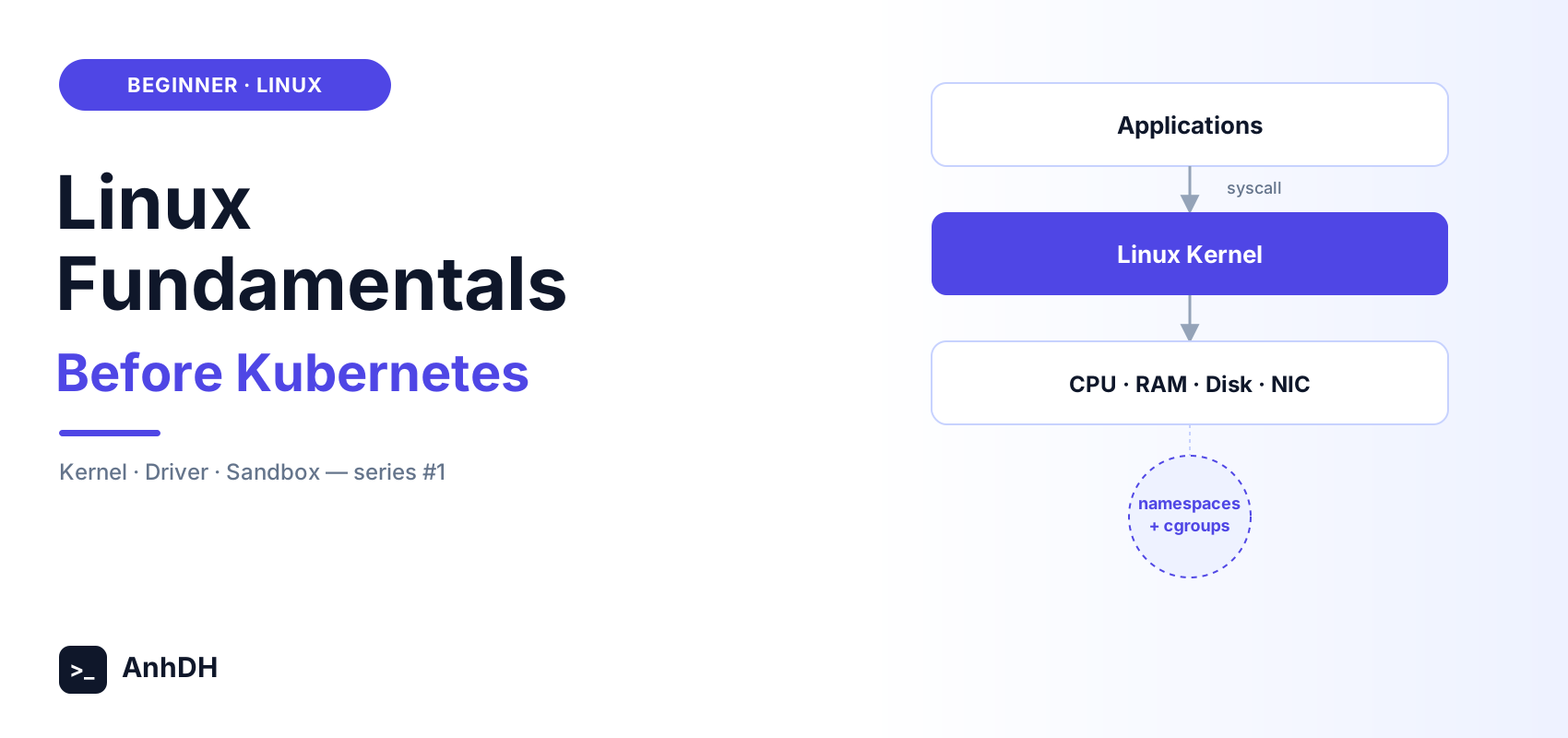
I'm starting a new series here called Kubernetes Fundamentals. Instead of jumping straight into kubectl apply and a wall of YAML, I want to walk through it the way the technology actually evolved: starting from a single physical machine, hitting a wall, solving it with virtual machines, hitting a new wall, solving that with containers, and finally hitting the wall that Kubernetes itself was built to solve. Each article only assumes what you'd realistically know at that point in the story — no spoilers from future articles.
And the story has to start even earlier than "physical machine". It starts with the one piece of software every one of those solutions is built on top of: the Linux kernel. If you've never really sat down and thought about what a kernel does, what a driver is, or what people mean when they say a process is "sandboxed", this article is for you.
Let's get started.
1. What is Linux, really?
When people say "Linux", they usually mean one of two things: an entire operating system distribution (Ubuntu, Debian, Fedora...), or just the kernel itself. For this article, I mean the second one.
The kernel is a layer of software that sits between your hardware (CPU, RAM, disk, network card) and every application you run.
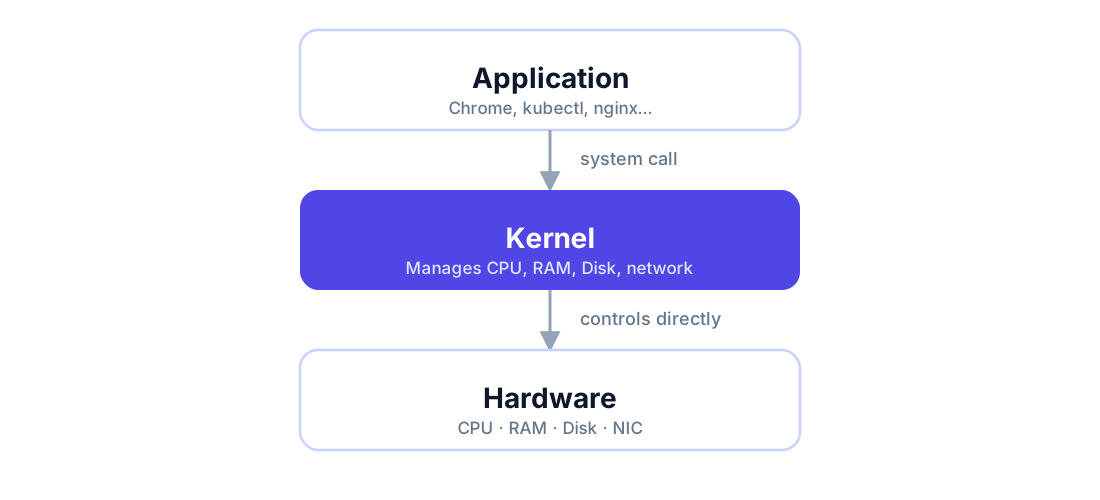
Here's the part that trips people up the first time they hear it: an application is never allowed to touch the hardware directly. Your browser doesn't get to poke the disk controller, and kubectl doesn't get to write straight into a network card's registers. Instead, every single one of those operations — read a file, allocate memory, open a socket, spawn a process — has to go through a system call (syscall).
A syscall is just a well-defined "front door" the kernel exposes to applications. open(), read(), write(), fork(), socket() — these are all syscalls. When your app calls one of them:
- Execution switches from user mode (where your app runs, with restricted privileges) to kernel mode (where the kernel runs, with full access to hardware).
- The kernel checks whether the calling process is even allowed to do this (permissions, quotas, whatever policy applies).
- If it's allowed, the kernel is the one that actually talks to the CPU scheduler, the memory manager, or the disk — not your app.
- Control switches back to user mode with a result.
You can literally watch this happen. On any Linux machine, run:
strace -c ls > /dev/null
strace intercepts every syscall a program makes and prints a summary. Even a command as simple as ls fires off dozens of syscalls (openat, read, close, mmap...) before it prints a single filename. None of that is ls "reaching into" the filesystem itself — every one of those calls is ls asking the kernel to do it on its behalf.
This single rule — apps request, the kernel decides and executes — is the foundation everything else in this article (and this whole series) is built on.
2. Kernel vs. Driver
The kernel doesn't inherently know how to talk to your specific WiFi chip, your specific GPU, or your specific NVMe disk. There are thousands of hardware vendors and tens of thousands of models. So the kernel doesn't try to hardcode support for every one of them — instead, each hardware component gets its own small module called a driver, whose only job is to translate the kernel's generic commands into the exact instructions that particular chip understands.
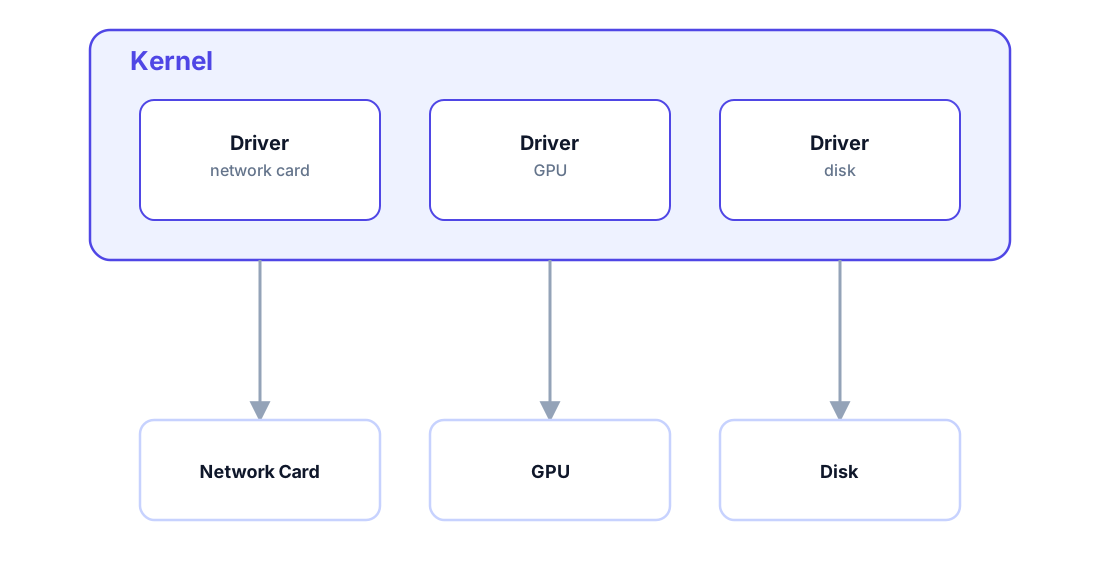
Without a driver for a piece of hardware, the kernel simply doesn't know how to speak to it — the device might as well not exist.
This is also where the well-known difference between "installing Windows" and "installing Linux" comes from:
- Windows' kernel is closed-source. Hardware vendors have to build their own driver packages and ship them separately, through Windows Update or the vendor's own installer. That's why setting up a new Windows machine usually means downloading driver installers.
- The Linux kernel is open-source, licensed under the GPL. The overwhelming majority of hardware vendors upstream their drivers directly into the mainline kernel source tree. That's why installing a distro like Ubuntu on a random laptop, the WiFi and the touchpad "just work" out of the box — the kernel you downloaded already ships with thousands of drivers baked in.
There's one notable exception: drivers that vendors want to keep closed-source — most famously NVIDIA's proprietary GPU driver, and some WiFi/Bluetooth chipset drivers — can't be merged into the mainline kernel, because the GPL requires the source to be open. NVIDIA has been steadily open-sourcing parts of its kernel module in recent years, but plenty of the stack (OpenGL/Vulkan/CUDA userspace drivers) is still closed-source, which is exactly why you often still have to run apt install nvidia-driver-xxx yourself instead of it just being there already.
3. Sandbox: isolation, provided by the kernel
Here's a question that becomes very relevant very quickly once multiple things are running on the same machine: how does the kernel stop one process from reading another process's memory, seeing another process's files, or eating up all the CPU and starving everyone else?
The general answer is: sandboxing. A sandbox is an isolated execution environment — code running inside it is restricted from reading, writing, or otherwise interfering with the real host system (or other sandboxes) around it.
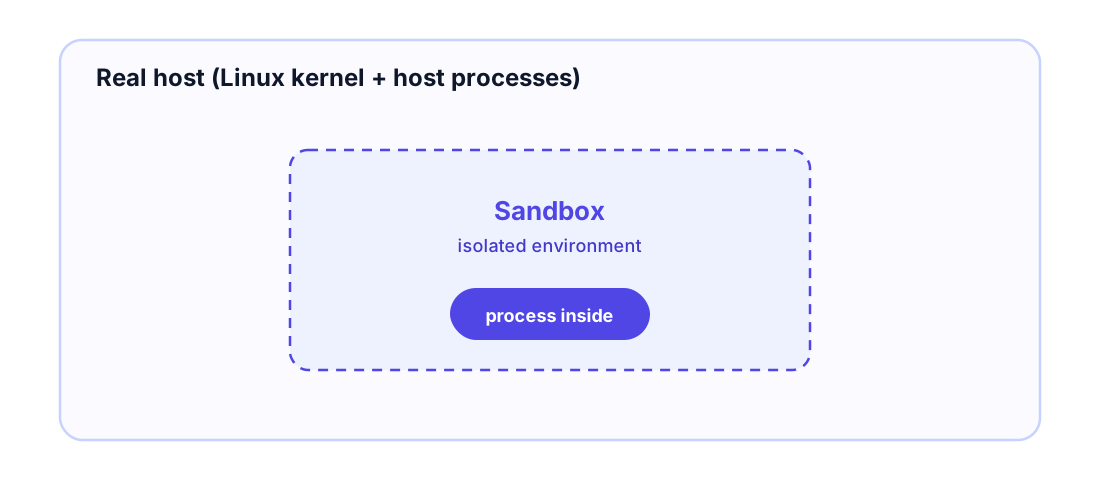
"Sandbox" is not one specific technology — it's a concept, and Linux gives you the low-level building blocks to construct one yourself. The two that matter most for everything coming up in this series are:
- Namespaces — restrict what a process can see. A process inside a PID namespace only sees the processes inside that same namespace; a process inside a network namespace only sees its own network interfaces, routes, and firewall rules.
- cgroups (control groups) — restrict what a process can use. How much CPU, how much RAM, how much disk I/O a group of processes is allowed to consume.
Keep this concept in the back of your mind, because the next two articles in this series are both, at their core, just different levels of "how much do we sandbox": a virtual machine sandboxes an entire operating system, and a container sandboxes at the level of a single process using exactly the two mechanisms above. We're not there yet — for the rest of this article, let's actually use namespaces and cgroups ourselves, with nothing else involved.
4. Hands-on: build your own sandbox
Everything below works on any modern Linux machine (a cloud VM, WSL2, or a disposable VM if you'd rather not experiment on your main machine). You'll need sudo.
4.1. Namespaces: change what a process can see
Every running process has a set of namespaces attached to it. You can see them right now:
ls -la /proc/self/ns/
lrwxrwxrwx 1 root root 0 Aug 16 10:00 mnt -> 'mnt:[4026531841]'
lrwxrwxrwx 1 root root 0 Aug 16 10:00 net -> 'net:[4026531840]'
lrwxrwxrwx 1 root root 0 Aug 16 10:00 pid -> 'pid:[4026531836]'
lrwxrwxrwx 1 root root 0 Aug 16 10:00 uts -> 'uts:[4026531838]'
...
Each entry is a symlink to an inode number identifying which namespace instance your current shell belongs to. Two processes in the same namespace show the same inode number; two processes in different namespaces show different numbers. That inode number is literally the kernel's bookkeeping for "who can see what".
Now let's create a process with its own PID, mount, and UTS (hostname) namespaces, using the unshare command:
sudo unshare --pid --mount --uts --fork --mount-proc bash
Inside this new shell, run:
echo $$
ps aux
Notice that $$ (your shell's PID) is a small number — often 1. That's not a coincidence: inside a fresh PID namespace, the first process to run becomes PID 1 of that namespace, and ps aux shows only the processes inside this namespace — every other process on the real host is invisible from here, even though they're still running right next to you.
Try changing the hostname too:
hostname sandbox-demo
hostname
Open a second terminal on the same machine (outside the unshare shell) and run hostname there — it's untouched. You just changed the hostname of an isolated UTS namespace, not the real machine.
Exit the shell (exit) to leave the namespace and go back to the host's own view.
This is the essence of what a namespace does: same kernel, same machine, but a deliberately restricted view of it.
4.2. cgroups: limit what a process can use
Namespaces control visibility; cgroups control resource consumption. On a modern distro, cgroup v2 is mounted at /sys/fs/cgroup:
mount | grep cgroup2
Let's create a cgroup and cap its memory:
sudo mkdir /sys/fs/cgroup/demo
echo "50M" | sudo tee /sys/fs/cgroup/demo/memory.max
Now put your current shell into that cgroup:
echo $$ | sudo tee /sys/fs/cgroup/demo/cgroup.procs
From this point on, your shell — and anything it spawns — is capped at 50MB of memory. Let's try to break that limit on purpose:
python3 -c "x = bytearray(200 * 1024 * 1024)"
Killed
The moment the process tries to cross the 50MB ceiling, the kernel's out-of-memory killer steps in and kills it — before it ever gets the chance to touch memory belonging to anyone else on the machine. You can confirm this is exactly what happened:
cat /sys/fs/cgroup/demo/memory.events
low 0
high 0
max 3
oom 1
oom_kill 1
oom_kill 1 is the cgroup's own counter confirming it killed a process that tried to exceed its limit. Clean up when you're done:
sudo rmdir /sys/fs/cgroup/demo
Two commands, unshare and a few writes into /sys/fs/cgroup, and you just built — by hand — the exact same two primitives that container runtimes automate for you later in this series: namespaces decide what a process can see, cgroups decide what it can use. Everything from Docker to containerd to Kubernetes itself is, underneath a lot of tooling, still just calling these same kernel mechanisms.
5. Where we're headed next
We now have three pieces in place: the kernel talks to hardware through drivers, applications talk to the kernel through syscalls, and the kernel can sandbox one process from another using namespaces and cgroups.
None of this required more than one machine. But a single physical machine — one kernel, bolted directly to one set of hardware — has real limits: you can't easily run two different operating systems on it, its resources are locked to whatever is installed on it even while idle, and scaling it means literally buying, racking, and cabling another physical box.
That's the wall the next article in this series picks up: how virtualization solves it by using a hypervisor to run several fully independent operating systems on that same physical hardware — and the new wall that creates, which is what eventually leads to containers.
See you in the next article.
Happy reading! 🍻
References
- namespaces(7) - Linux manual page
- unshare(1) - Linux manual page
- Control Groups v2 - The Linux Kernel documentation
- What even is a container: namespaces and cgroups - Julia Evans
- Complete Beginner's Guide to Linux Namespaces - Linux Handbook
 Do Hung Anh@anhdh
Related articles
CronJob & Cron Expressions
CronJob is an essential tool that lets developers automate tasks on a recurring schedule. To configure a CronJob correctly, however, you need a solid grasp of the Cron Expression - the expression that defines the schedule for your automated jobs. This article introduces CronJob, explains how to build a Cron Expression, and shares some handy tools for creating cron expressions with ease.
Top 10 Java Core Interview Questions
Foundational knowledge is something interviewers always check, whether you're a fresher or a senior engineer. This post rounds up the 10 most common Java Core interview questions, with quick hints and detailed explanations so you can review before your next interview.