On this page
Hi everyone 👋, I'm Hung Anh.
This is the third article in the Kubernetes Fundamentals series. In the previous article, we went through what a physical server is made of and where it hits its limits, and we closed on a question: "Is there a way for a single piece of physical hardware to run several different OSes at once and put the idle capacity to use?"
In this article, let's see how the Virtual Machine solves that problem, and the downsides of this approach.
Let's get started.
1. What Is a Virtual Machine?
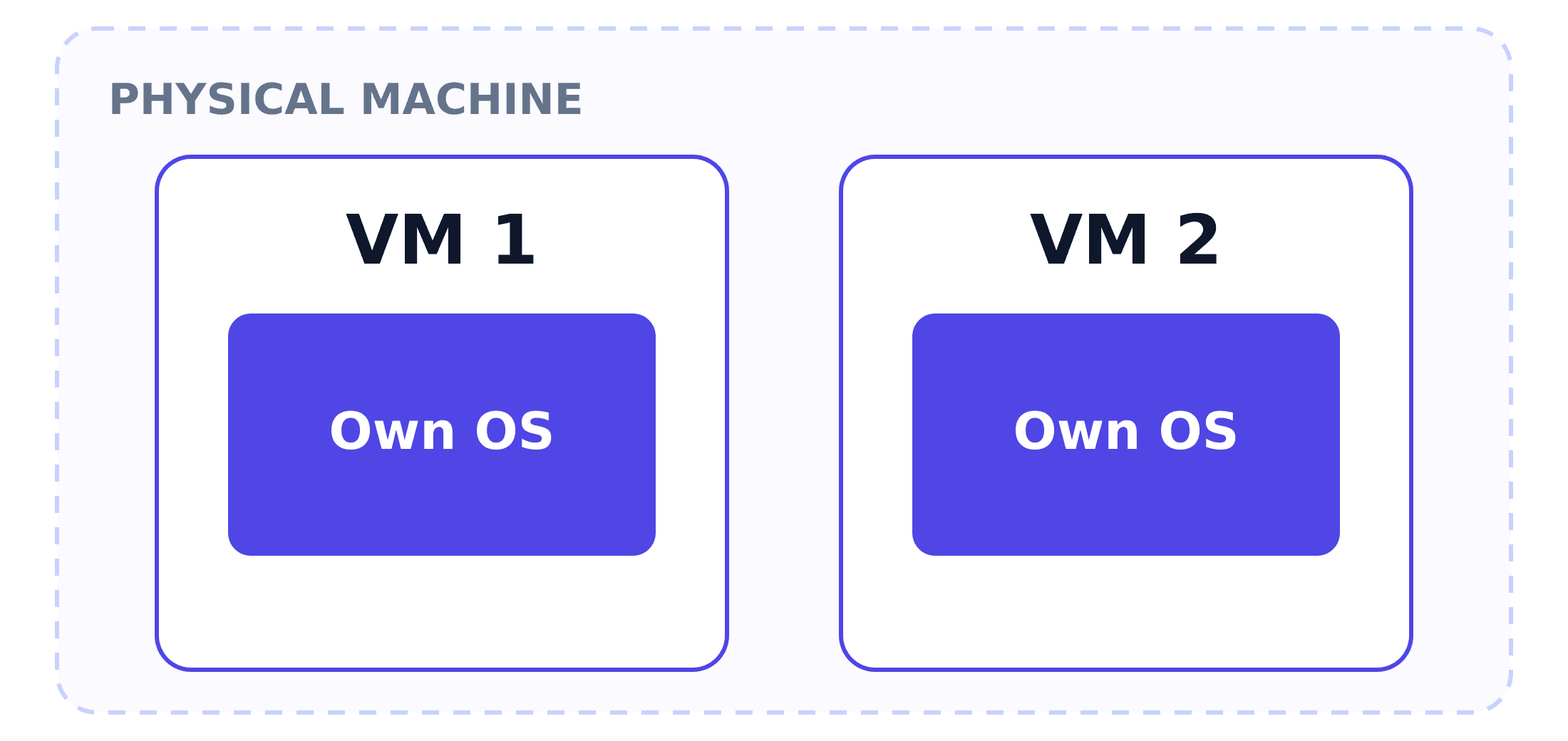
A Virtual Machine (VM) is a computer entirely emulated in software — it has its own complete OS and kernel, runs independently, and knows nothing about any other VM running alongside it on the same physical machine.
A Virtual Machine emulates an entire virtual set of hardware, letting a full, real operating system run on top of it — just as if it were installed on real hardware.
2. How Does a Virtual Machine Work?
One real machine can hold several VMs, each with its own OS, and they all have to share the exact same physical hardware underneath. The software standing between the hardware and the VMs to divide the physical resources among the VMs, then keep them isolated from one another, is called the hypervisor.
Hypervisors come in two kinds, depending on whether there's a host OS underneath them — and the path a request takes from an application down to the real hardware differs between the two.
2.1. Bare-metal hypervisor
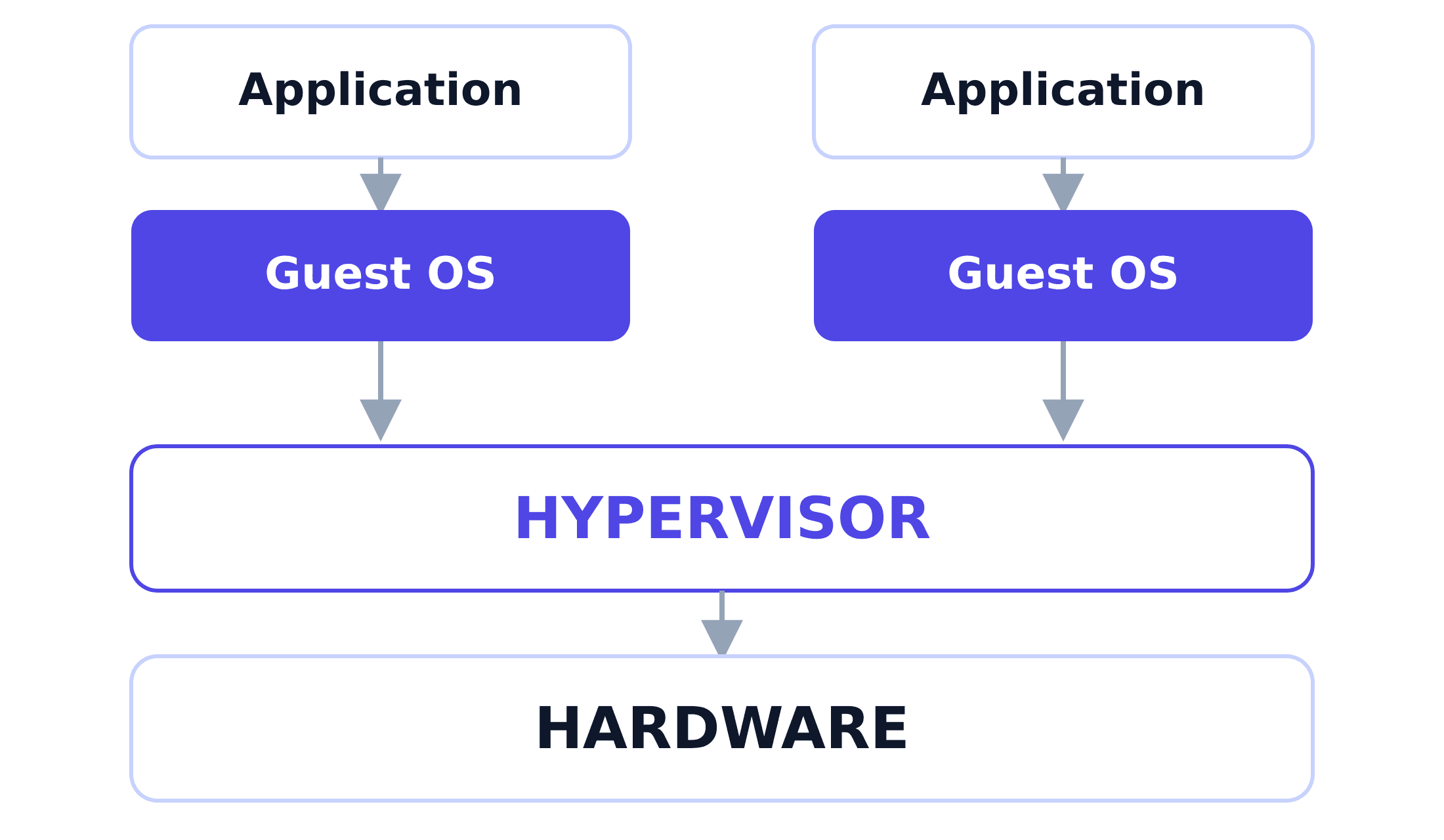
A bare-metal hypervisor is one installed directly on the hardware, with no host OS needed, and it essentially acts as the kernel of the physical machine itself (examples: VMware ESXi, Xen), typically used in datacenters.
An application inside a VM makes syscalls to that VM's own kernel, that kernel calls down into the hypervisor, and the hypervisor is the one that directly translates the request down to operate the real hardware.
2.2. Hosted hypervisor
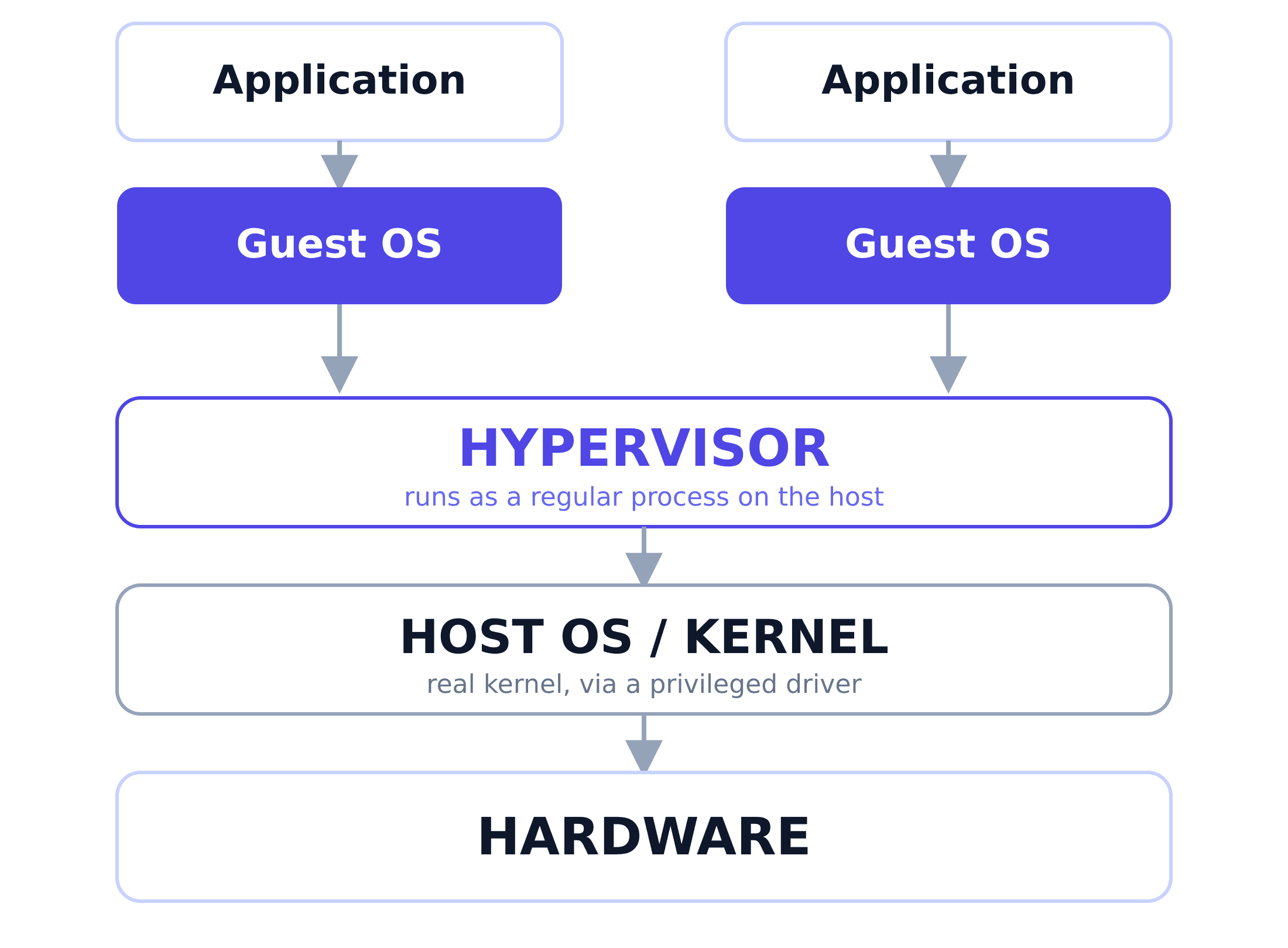
A hosted hypervisor is one installed as a regular program running on top of an existing OS (the host OS), instead of touching the hardware directly. Examples: VirtualBox, VMware Workstation — typically used for dev/test or as a sandbox lab.
Here the hypervisor is really just an ordinary application: on its own, it has no permission to operate the real hardware components, and has to go through the host machine's kernel like any other application.
Either way, a VM shares only the physical hardware with the real machine (through the hypervisor) — the OS and kernel are each VM's own, completely separate copy.
WSL2 (Windows Subsystem for Linux) runs a real Linux kernel inside a lightweight VM hidden in the background, letting you run Linux directly on Windows.
3. How This Solves the Previous Article's Problem
The problem: a physical server can only run one kernel, one set of hardware, one environment, at a time. Is there a way for a single piece of physical hardware to run several different OSes at once and put the idle capacity to use?
Solution: Thanks to the hypervisor, a single physical machine can now run several fully independent operating systems at once — one VM needs Ubuntu, another needs CentOS, and both run on the exact same hardware, no new machine required. The capacity that used to sit idle is now shared across multiple VMs instead of going to waste.
4. The Downsides of a Virtual Machine
- Heavy. Each VM carries a full OS and kernel of its own, typically several GB per VM — no matter how small the application running inside it actually is.
- Slow to start. Booting a VM means booting an entire operating system, just like turning on a real computer — tens of seconds to a few minutes, every time.
- Overhead just to exist. Before your application runs a single line of its own code, the VM has already spent CPU and RAM resources just running its own OS.
5. Summary
The Virtual Machine solves the "one machine, one environment" problem by emulating an entire set of hardware for each OS, managed by a hypervisor. But the price is that every VM is heavy, slow to start, and spends resources just running its own OS.
In practice, most servers use the Linux kernel. So having every VM contain its own full kernel starts to feel wasteful. Containers emerged to solve exactly that problem. That's also what we'll discuss together in the next article.
Goodbye for now, and see you in the next one.
Happy reading! 🍵
References
- What's the difference between Type 1 vs. Type 2 hypervisor? - TechTarget
- What is Windows Subsystem for Linux - Microsoft Learn
 Do Hung Anh@anhdh
Related articles
Kubernetes Cluster Architecture
What actually makes up a Kubernetes cluster? The control plane decides what runs where, the nodes run it, and the addons fill in the rest.
Container
The container solves the Virtual Machine's weight and boot-time problem by dropping the private kernel every VM has to carry around.
Physical Servers and Their Limits
What does a physical server actually look like, and why can't we just keep deploying more onto the same one?